XCIPTV Player is a media player application that allows Android users to stream IPTV content through M3U playlists or Xtream Codes API credentials. The app itself contains no pre-loaded content and functions as middleware that interprets data provided by the user. Installation requires downloading from the Google Play Store, adding your service provider’s login credentials, and configuring the player settings for optimal mobile performance.
Legal and Security Disclaimer
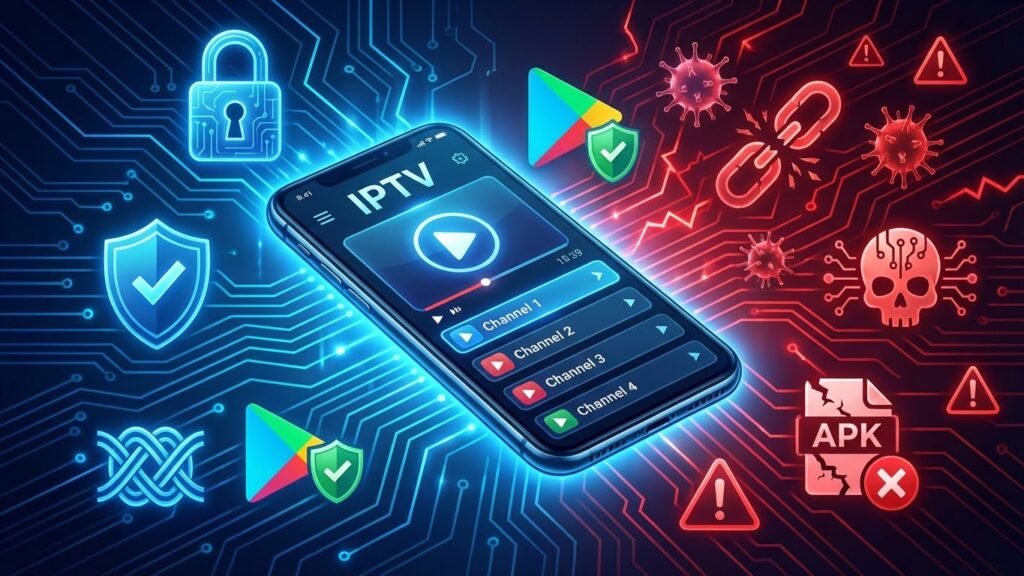
Before proceeding, users must understand that XCIPTV Player, developed by Ottrun (Nath Network & Telecom Inc.), is classified as an “Empty Shell” or “Agnostic Media Player.” The software is legal to install and own. However, the legality of usage depends entirely on the source of content streamed through the application. Using XCIPTV to access unlicensed IPTV services—those offering premium cable channels or pay-per-view events without proper licensing—constitutes copyright infringement under the Digital Millennium Copyright Act (DMCA) in the United States and similar statutes in other jurisdictions.
The European Court of Justice has established precedents suggesting that knowingly using software to access illegal streams can be classified as communication to the public of protected works. Additionally, downloading modified (modded) APK files from unofficial sources exposes users to severe cybersecurity risks, including banking trojans like Klopatra and Teabot, which use Android’s Accessibility Services to steal credentials through overlay attacks. This guide covers only the official installation method from verified app stores.
Installing XCIPTV from Google Play Store
The safest installation method involves downloading directly from the Google Play Store, which ensures the cryptographic signature matches the official developer.
Step 1: Download and Install
Open the Google Play Store on your Android device and search for “XCIPTV Player” or navigate directly to the application page. Verify that the developer name displays as “Ottrun” before tapping Install. The application requires Android 5.0 or higher and approximately 25MB of storage space. The Play Store version is protected by Google Play Protect, which scans for malware and verifies the digital signature.
Step 2: Launch and Navigate Interface
After installation, open XCIPTV Player. The interface uses a “Remote-First” design with large tiles optimized for TV navigation via D-pad. On mobile devices, this translates to larger buttons that require precise tapping. Users report that scrolling lists lack the kinetic momentum typical of native mobile applications, but this trade-off ensures stability when handling massive VOD libraries without crashes.
Step 3: Add Your IPTV Service
Tap the menu icon (three horizontal lines) and select “Add Playlist” or “Add Account.” You will see two primary options for adding content:
Option A: M3U Playlist URL
This method uses a simple text file containing channel URLs. When XCIPTV loads an M3U file, it parses the entire document at once. For providers offering 20,000 channels, this means processing 40,000+ lines of code every time the app launches, causing significant startup lag and high RAM usage on mobile devices.
Option B: Xtream Codes API
This optimized method uses a server-client relationship. Instead of downloading the complete channel list, XCIPTV queries the server for categories only. When you select “Sports,” the app requests just the Sports channels. This lazy loading technique drastically reduces memory pressure and saves mobile data by downloading metadata only when needed. Xtream Codes also enables advanced features like Catch-Up TV archives, which are difficult to implement through M3U playlists.
Enter your service provider’s credentials:
- Server URL: The DNS address (without http:// prefix)
- Username: Your account username
- Password: Your account password
For M3U users, paste the complete playlist URL into the designated field.
Step 4: Verify Connection
After saving credentials, XCIPTV will connect to the server and download channel categories. This process typically takes 10-30 seconds depending on your internet connection and the provider’s server load. If categories appear, the connection is successful.
Configuring XCIPTV for Mobile Performance

Mobile devices face constraints that desktop and TV environments do not: limited battery life, thermal throttling, and data caps. Proper configuration is essential for acceptable performance.
Enable Hardware Decoding
Video decoding is computationally expensive. Software (SW) decoding forces the CPU to assemble pixels, which is inefficient and causes rapid device heating. On phones, SW decoding of a 1080p stream can drain 1% of battery per minute or more.
Hardware (HW) decoding offloads this work to the System-on-Chip’s Video Processing Unit (VPU), which is designed exclusively for video processing. Navigate to XCIPTV Settings > Player Settings and verify that “Hardware Acceleration” or “HW Decoder” is enabled. If playback appears choppy, the app may have defaulted to SW decoding for an unsupported codec. Switching the player engine from ExoPlayer to VLC often forces hardware usage where ExoPlayer fails.
Optimize Buffer Size for Content Type
The Buffer Size setting controls how much video data the player downloads ahead of current playback position. Many users misunderstand this parameter.
For Live TV (especially sports), large buffers create noticeable delays. A 15-second buffer means you’re watching events 15 seconds after they occur. Additionally, if your connection drops briefly, the player attempts to refill the entire buffer, causing a “loop” where the same 5-second segment replays repeatedly. For live content on stable WiFi or 4G/5G connections, set Buffer Size to “Small” or “None” to minimize latency and prevent looping behavior.
For VOD content (movies and shows), latency is irrelevant. A “Large” buffer allows the app to download significant content ahead, protecting the viewing experience from temporary network interruptions.
Manage Data Consumption with Codec Selection
Mobile data caps are a critical constraint for many users. Video compression standards significantly impact data usage.
H.264 (AVC) is the standard codec. A 1080p stream typically runs at 5-8 Mbps, consuming approximately 2.5-3.5 GB per hour.
H.265 (HEVC) is High-Efficiency Video Coding, a newer standard delivering identical visual quality at half the bitrate (2-4 Mbps). Watching HEVC streams reduces data consumption to approximately 1.2 GB per hour, effectively doubling viewing time on capped data plans.
Search your XCIPTV category list for channels labeled “HEVC” or “H.265” and prioritize these when streaming over mobile data.
Configure Electronic Program Guide (EPG)
The EPG provides the TV schedule but is the feature most prone to failure. XCIPTV downloads an XML file (XMLTV format) containing program data. Common failure points include:
Size limits: Some providers offer massive EPG files exceeding 50MB. On mobile connections, downloading these files may time out, resulting in “No Information” errors.
Parsing errors: If the XML contains invalid characters (such as an unescaped ampersand in a show title), the parser may crash and discard the entire guide.
Navigate to Settings > EPG Settings and locate the “Limit EPG Days” option. Reducing this from 7 days to 2 days significantly reduces file size and parsing errors, fixing most “No Information” problems.
Use a VPN for Privacy and Performance
ISP throttling of IPTV traffic is widespread. Additionally, many IPTV providers use unencrypted HTTP streams rather than HTTPS, exposing usage data to potential interception. A Virtual Private Network (VPN) serves two functions: encrypting your traffic and bypassing ISP traffic shaping policies that deliberately slow streaming connections.
When selecting a VPN, prioritize services with servers near your physical location to minimize additional latency. In connectivity tests, users report that VPN usage can actually improve stream stability when ISP throttling is present, despite the slight increase in latency from encryption overhead.
Comparison: XCIPTV vs. Alternative IPTV Players
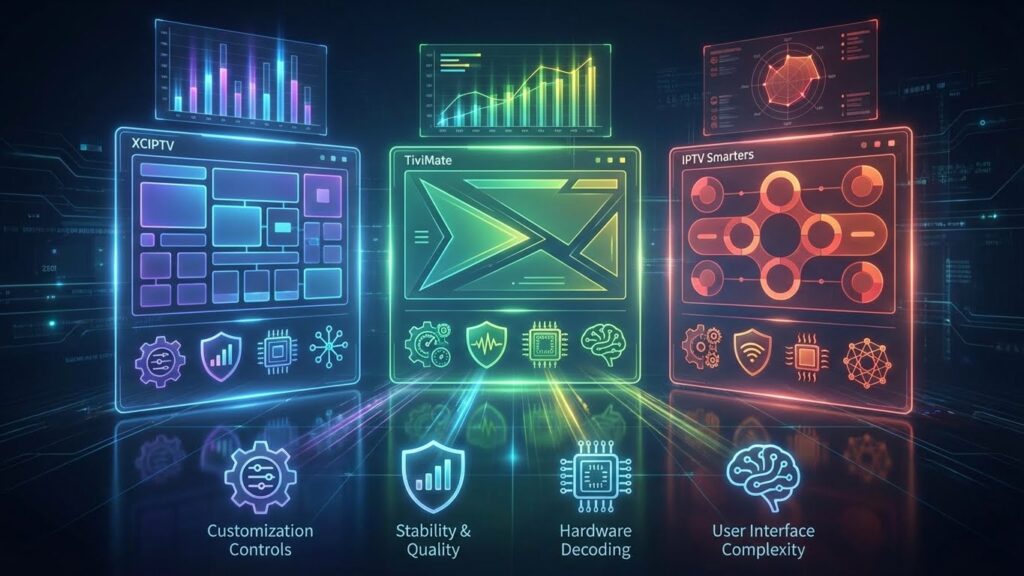
| Feature | XCIPTV | TiviMate | IPTV Smarters |
|---|---|---|---|
| Player Engine | ExoPlayer + VLC | ExoPlayer + ijkPlayer | Custom Engine |
| Xtream Codes Support | Native | Native | Native |
| Hardware Decoding | Yes (configurable) | Yes (automatic) | Limited |
| Recording Feature | No | Yes (Premium) | No |
| UI Complexity | Simple (fewer settings) | Advanced (many options) | Moderate |
| Pricing Model | Free | Freemium ($5/year) | Free |
| Primary Advantage | Stability, less support tickets | Advanced features, customization | Market legacy, familiarity |
| Mobile Optimization | Good (lazy loading) | Excellent (all features) | Fair (older architecture) |
XCIPTV occupies a “Brandable/Stable” middle ground in the market. Service providers often prefer distributing XCIPTV to customers because its simplified settings interface is harder to misconfigure, resulting in fewer support tickets compared to TiviMate’s extensive customization options. Meanwhile, IPTV Smarters, while historically the market leader, has experienced stability issues and app store removals due to legal complaints. XCIPTV’s utilization of the newer ExoPlayer engine handles HLS (HTTP Live Streaming) protocols better than the older engines used in legacy applications.
Troubleshooting Common Installation and Playback Issues
“Error Parsing Package” During Installation
This error indicates an incompatible Application Binary Interface (ABI) or corrupted APK download. Android devices use either ARM or x86 processor architectures, and APK files must match. Re-download the application from Google Play Store, which automatically detects your device architecture. Ensure your Android OS version meets minimum requirements (Android 5.0 or higher).
EPG Update Failed or No Program Information
This typically results from ISP blocking the EPG server port or XML files exceeding size limits. First, clear the XCIPTV app cache by navigating to Android Settings > Apps > XCIPTV > Storage > Clear Cache. If the problem persists, connect via VPN to bypass potential ISP blocks on EPG servers. Finally, reduce EPG retention days in XCIPTV settings from 7 days to 2 days.
Video Plays for 10 Seconds Then Loops
This symptom indicates a buffer size mismatch or HLS manifest parsing error. Navigate to XCIPTV Settings and set Buffer Size to “None.” If the issue continues, switch the player engine from ExoPlayer to VLC. ExoPlayer occasionally struggles with certain HLS manifest configurations, while VLC’s libVLC library handles a broader range of stream implementations.
Audio Plays But No Video Appears
This indicates codec incompatibility, such as attempting to play Dolby Vision content on a non-supported display. Switch the player engine to VLC in settings. If that fails, temporarily disable “HW Decoding” to force software rendering as a diagnostic step. This will drain battery quickly but confirms whether the issue stems from hardware decoder limitations.
Frequent Buffering Despite Strong Connection
Buffering during strong WiFi or cellular connections usually indicates ISP throttling of IPTV traffic. Enable a VPN to encrypt traffic, preventing your ISP from identifying and throttling streaming data. Additionally, verify that “Hardware Acceleration” is enabled, as software decoding can create artificial buffering when the CPU cannot keep pace with the video bitrate.
Key Technical Concepts for XCIPTV Users
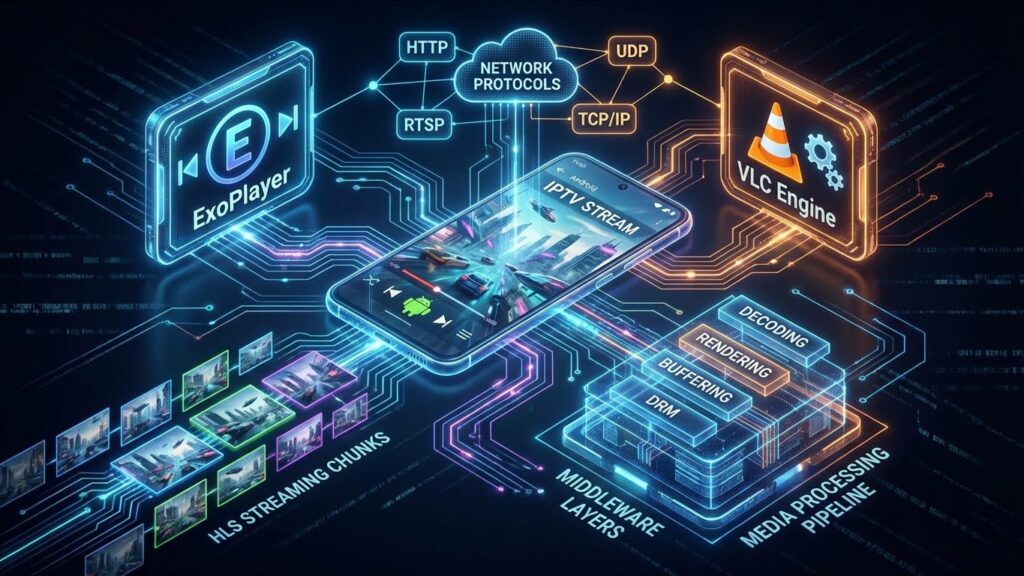
Understanding the technical stack improves troubleshooting capability and configuration decisions.
ExoPlayer is Google’s default application-level media player for Android. It serves as the primary engine in XCIPTV, responsible for handling adaptive streams and HLS protocols.
VLC Media Engine functions as the integrated fallback player, utilizing the libVLC library to handle codec diversity (MKV, AVI) that Android’s native framework might reject.
HLS (HTTP Live Streaming) is the underlying communication protocol XCIPTV uses to deliver video. Content is broken into small chunks (typically 2-10 seconds each), allowing the player to adapt quality based on current connection speed. Understanding this chunk-based delivery explains why some network issues cause repeating segments rather than complete playback failure.
Middleware describes XCIPTV’s role in the content delivery chain. The application does not create, host, or distribute content. It interprets data structures provided by external services and renders them on the display.
Frequently Asked Questions
Q: Can I install XCIPTV on any Android phone?
XCIPTV requires Android 5.0 (Lollipop) or higher. Most devices manufactured after 2015 meet this requirement. The application functions on both ARM and x86 processor architectures, covering virtually all Android phone models currently in use.
Q: Why does XCIPTV drain my battery faster than other apps?
Video decoding is inherently power-intensive. Ensure Hardware Decoding is enabled in player settings. Software decoding forces the CPU to handle video processing, which is significantly less efficient than using the dedicated Video Processing Unit. Also verify that you’re streaming in a resolution appropriate for a mobile screen—4K streams on a 6-inch display waste battery without visible quality improvement.
Q: Is it illegal to install XCIPTV?
Installing and owning XCIPTV Player is legal. The application contains no copyrighted content upon installation. However, using the application to stream content from unlicensed IPTV providers—services that offer premium channels without proper licensing agreements—constitutes copyright infringement. The legality depends on the content source, not the software itself.
Q: Why should I use Xtream Codes instead of M3U playlists?
Xtream Codes API uses lazy loading, downloading only the metadata you request rather than parsing an entire playlist file at startup. For providers with large channel counts (10,000+), this difference is substantial. M3U playlists can take 30-60 seconds to load on mobile devices and consume significant RAM. Xtream Codes loads categories almost instantly and reduces memory usage by 60-80% compared to M3U.
Q: What is the safest source for downloading XCIPTV?
The Google Play Store is the only recommended source. Modified APK files from third-party websites often contain malware, including banking trojans that use overlay attacks to steal credentials when you open legitimate banking applications. The Play Store version is cryptographically signed by the official developer (Ottrun) and scanned by Google Play Protect.
Q: Why does my EPG not show program information?
EPG failures typically stem from oversized XML files or parsing errors. Navigate to EPG Settings and reduce the “EPG Days” setting from 7 to 2. This reduces file size by approximately 70%, making downloads more reliable over mobile connections. If your ISP blocks EPG server ports, connecting through a VPN usually resolves the issue.
Q: Can XCIPTV record live TV on Android phones?
XCIPTV does not include recording functionality. This feature requires significant storage management and background processing that would impact battery life on mobile devices. Users seeking recording capabilities should consider TiviMate, which offers this feature in its premium tier.
Q: How much mobile data does XCIPTV use per hour?
Data consumption depends on stream quality and codec. Standard H.264 encoding at 1080p consumes 2.5-3.5 GB per hour. HEVC (H.265) encoding delivers identical quality at 1.2-1.5 GB per hour. For 720p streams, expect 1.5-2 GB per hour with H.264 and 0.7-1 GB per hour with HEVC. Always prioritize HEVC channels when streaming over cellular data.
Q: Why does XCIPTV feel less smooth than other Android apps?
XCIPTV uses a “Remote-First” interface design optimized for TV navigation with remote controls. Large tiles and button layouts prioritize compatibility with D-pad navigation. On touchscreens, this translates to reduced kinetic scrolling momentum compared to native mobile UI patterns. However, this design choice contributes to the application’s stability—the rigid interface structure prevents accidental misconfigurations that generate support tickets.
Q: Should I use a VPN with XCIPTV?
VPN usage serves two purposes for IPTV streaming. First, it encrypts traffic, protecting privacy since many IPTV providers transmit streams over unencrypted HTTP rather than HTTPS. Second, it bypasses ISP throttling policies that deliberately slow streaming traffic. In performance tests, users report that VPN usage can improve stream stability when ISP throttling is active, despite adding slight encryption overhead.