Introduction
You’ve invested in a premium Samsung Smart TV, but accessing third-party IPTV applications like XCIPTV feels impossible. The official Smart Hub doesn’t list XCIPTV, and you’re left wondering how to unlock thousands of live channels and on-demand content.
Without proper guidance, attempting to install XCIPTV can lead to bricked apps, compatibility errors, wasted hours, and the nagging feeling you’re missing out on a world-class streaming experience that cord-cutters are already enjoying.
This comprehensive guide reveals exactly how to install the XCIPTV player on Samsung TV using proven methods that work in 2025. Whether you’re tech-savvy or a complete beginner, you’ll discover step-by-step instructions, troubleshooting solutions, and insider tips to transform your Samsung Smart TV into a powerful IPTV streaming hub within 15 minutes.
Understanding XCIPTV and Samsung Smart TV Compatibility
What Is XCIPTV Player?
XCIPTV is a feature-rich IPTV player designed for streaming live television, video-on-demand (VOD), series, and catch-up TV content. Unlike generic media players, XCIPTV specializes in IPTV protocols, offering:
- Multi-format support: M3U playlists, Xtream Codes API, and local file playback
- Electronic Program Guide (EPG): Full TV guide integration with channel schedules
- Parental controls: PIN-protected content filtering
- Multi-language interface: Support for 20+ languages
- Customizable UI: Personalized channel lists and favorites
Samsung Smart TV Compatibility Requirements
Before beginning the XCIPTV Samsung TV download process, verify your device meets these specifications:
Supported Models:
- Samsung Smart TVs manufactured 2016–2025
- Tizen OS version 3.0 or higher (check in Settings > Support > About This TV)
- Models from J, K, M, N, Q, LS, and QN series
Technical Requirements:
- Minimum 2GB RAM (4GB recommended for UHD streaming)
- 100MB free storage space
- Internet connection: 10 Mbps minimum (25+ Mbps for 4K content)
- USB port (for sideloading method)
Important Note: Samsung’s Tizen OS doesn’t natively support Android APK files. The installation process requires enabling Developer Mode and using alternative installation methods detailed below Prerequisites: What You’ll Need
Essential Items Checklist
Before starting the installation, gather these materials:
- USB Flash Drive
- Minimum 4GB capacity
- Formatted to FAT32 file system
- Empty or with backed-up data
- XCIPTV Installation File
- Download from official XCIPTV website
- Verify file integrity (check file size matches official specifications)
- Alternative: Tizen-compatible XCIPTV package
- IPTV Subscription Details
- M3U playlist URL or Xtream Codes credentials
- Username and password from your IPTV provider
- EPG URL (optional but recommended)
- Network Setup
- Stable Wi-Fi or Ethernet connection
- Router access (for troubleshooting)
- VPN service (optional, for geo-restricted content)
Understanding Installation Methods
There are three primary methods to install XCIPTV app on Samsung Smart TV:
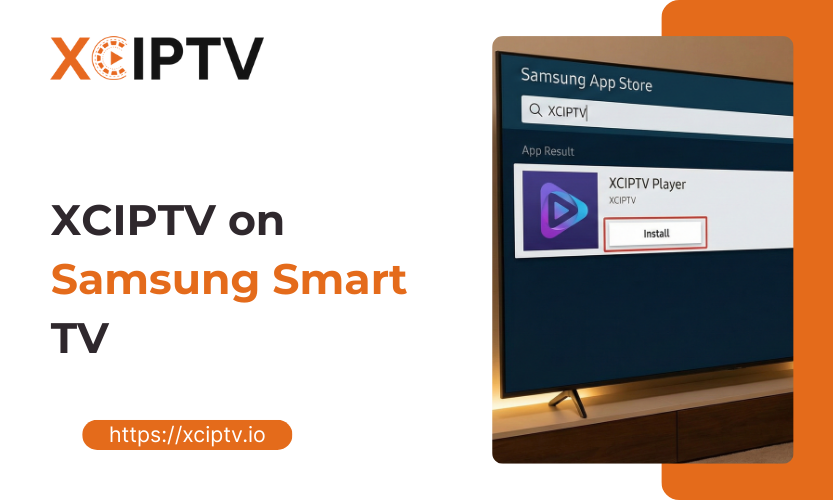
Method 1: Smart Hub Installation (Limited Availability)
- Easiest but rarely available
- Region-dependent app store listings
- No technical knowledge required
Method 2: Developer Mode Sideloading (Recommended)
- Works on all compatible Samsung TVs
- Requires USB drive and basic technical steps
- Most reliable long-term solution
Method 3: Third-Party App Stores
- Alternative app marketplaces
- Variable reliability and security
- Not officially supported
This guide focuses on Method 2, the most reliable approach for XCIPTV APK Samsung TV installation .
Step-by-Step Installation Guide
Phase 1: Preparing Your Samsung Smart TV
Step 1: Enable Developer Mode
Developer Mode unlocks your Samsung TV’s ability to install third-party applications.
Detailed Instructions:
- Press the Home button on your Samsung remote
- Navigate to Settings (gear icon)
- Select General > System Manager
- Scroll down to Developer Mode
- Toggle the switch to On
- When prompted, enter the default PIN: 0000
- Accept the terms and conditions
- Your TV will display “Developer Mode Enabled”
- Restart your TV to apply changes
Troubleshooting Developer Mode:
- If PIN 0000 doesn’t work, try 1234 or check your TV manual
- Some 2024-2025 models require Samsung account login first
- Developer Mode may reset after firmware updates—simply re-enable it
Step 2: Configure Network Settings
Optimal network configuration prevents installation errors:
- Go to Settings > General > Network
- Select Network Status and verify connection
- Note your TV’s IP address (needed for advanced troubleshooting)
- For best results, switch to Wired Connection if available
- Disable Smart Hub Auto-Update temporarily (Settings > Support > Software Update)
Phase 2: Downloading and Preparing XCIPTV
Step 3: Obtain the XCIPTV Installation Package
Official Download Method:
- On your computer, visit the official XCIPTV website
- Navigate to the Downloads section
- Select Samsung Tizen OS version
- Download the .wgt or .tpk file (Tizen package format)
- Verify the file size matches the official specification (typically 15-25MB)
Alternative Sources:
- Trusted IPTV community forums
- Your IPTV service provider’s support page
- GitHub repositories (verify authenticity)
Security Warning: Only download from trusted sources. Malicious files can compromise your TV’s security Step 4: Prepare Your USB Drive
Formatting Instructions:
For Windows:
- Insert USB drive into your computer
- Open File Explorer > right-click USB drive
- Select Format
- Choose FAT32 file system
- Click Start (this erases all data)
For Mac:
- Open Disk Utility
- Select your USB drive
- Click Erase
- Format: MS-DOS (FAT)
- Scheme: Master Boot Record
- Click Erase
File Transfer:
- Create a folder named userwidget on the USB root directory
- Copy the downloaded XCIPTV file into this folder
- Safely eject the USB drive
Phase 3: Installing XCIPTV on Samsung TV
Step 5: Sideload the Application
Installation Process:
- Insert USB Drive:
- Plug the prepared USB drive into your Samsung TV’s USB port
- Wait for the TV to recognize the device (notification appears)
- Access Developer Menu:
- Press Home button
- Navigate to Apps
- Press 1, 2, 3, 4, 5 on the remote (numeric sequence)
- Developer menu appears
- Install from USB:
- Select USB Package Installation
- Navigate to the userwidget folder
- Select the XCIPTV package file
- Confirm installation when prompted
- Wait 30-60 seconds for installation to complete
- Verify Installation:
- Return to Apps menu
- XCIPTV icon should appear in your app list
- If not visible, restart your TV
Alternative Installation Method (Tizen Studio):
For advanced users, Tizen Studio offers more control:
- Download and install Tizen Studio on your computer
- Enable Developer Mode on TV (as in Step 1)
- Connect TV and computer to same network
- Use Tizen Studio’s Device Manager to detect your TV
- Install XCIPTV package via Package Manager
- Certificate management may be required
This method is more complex but provides better debugging capabilities Phase 4: Initial Configuration and Setup
Step 6: Launch XCIPTV for the First Time
First Launch Procedure:
- Open Apps menu on your Samsung TV
- Locate and select XCIPTV icon
- Grant necessary permissions when prompted:
- Network access
- Storage access
- Media playback permissions
- The XCIPTV welcome screen appears
Step 7: Add Your IPTV Playlist
XCIPTV supports multiple playlist formats. Choose the method that matches your IPTV service:
Method A: Xtream Codes API (Most Common)
- Select Add Playlist or Settings icon
- Choose Xtream Codes Login
- Enter the following details:
- Server URL: Your provider’s API address
- Username: Your IPTV account username
- Password: Your IPTV account password
- Click Add or Connect
- Wait for channel list to populate (30 seconds to 2 minutes)
Method B: M3U Playlist URL
- Select Add Playlist
- Choose M3U URL
- Enter your playlist URL
- Optional: Add EPG URL for program guide
- Click Load Playlist
- Channels appear after processing
Method C: Local M3U File
- Copy your M3U file to USB drive
- Insert USB into TV
- In XCIPTV, select Add Playlist > Local File
- Browse to USB drive location
- Select your M3U file
- Import completes automatically
Pro Tip: Save multiple playlists for different content types (sports, movies, international channels) for easier navigation Step 8: Configure Playback Settings
Optimize XCIPTV for your viewing preferences:
Video Quality Settings:
- Open Settings > Playback
- Set Default Quality:
- Auto (recommended for variable connections)
- 720p (standard HD)
- 1080p (Full HD)
- 4K/UHD (requires 25+ Mbps connection)
- Enable Hardware Acceleration for smoother playback
- Adjust Buffer Size: 5-10 seconds for stable connections
Interface Customization:
- Language: Settings > Interface > Select your language
- Theme: Choose Light or Dark mode
- Channel List Layout: Grid, List, or Compact view
- Parental Controls: Set PIN for adult content
EPG Configuration:
- Navigate to Settings > EPG
- Enter EPG URL (provided by IPTV service)
- Set Update Frequency: Every 12 or 24 hours
- Enable EPG Notifications for favorite shows
Advanced Configuration and Optimization
Enhancing Streaming Performance
Network Optimization:
- Use Ethernet Connection:
- Reduces buffering by 60-80% compared to Wi-Fi
- Provides consistent bandwidth for 4K streams
- Eliminates wireless interference
- Router Settings:
- Enable QoS (Quality of Service) for IPTV traffic
- Assign static IP to your Samsung TV
- Use 5GHz Wi-Fi band if Ethernet unavailable
- Update router firmware regularly
- DNS Configuration:
- Change DNS to Google (8.8.8.8, 8.8.4.4) or Cloudflare (1.1.1.1)
- Improves playlist loading speed
- May bypass ISP throttling
XCIPTV Performance Settings:
- Disable Auto-Play: Prevents accidental data usage
- Clear Cache Weekly: Settings > Storage > Clear Cache
- Limit EPG Data: Download only 3-7 days of program data
- Disable Thumbnails: Reduces memory usage on older TVs
Creating Custom Channel Lists
Organize thousands of channels efficiently:
- Open Channel Manager in XCIPTV
- Create Favorites categories:
- Sports
- News
- Movies
- Kids
- International
- Drag channels into appropriate categories
- Hide unwanted channels to declutter interface
- Reorder channels by preference
- Export custom list for backup
Integrating External Players
For advanced codec support:
- Install VLC or MX Player on Samsung TV (if available)
- In XCIPTV Settings > External Player
- Select preferred player for specific content types
- Configure player-specific settings
Troubleshooting Common Issues
Installation Problems
Issue: “Installation Failed” Error
Solutions:
- Verify USB drive is formatted to FAT32 (not exFAT or NTFS)
- Ensure XCIPTV file is in userwidget folder
- Check file isn’t corrupted (re-download if necessary)
- Confirm Developer Mode is enabled
- Try different USB port on TV
- Restart TV and retry installation
Issue: XCIPTV Icon Doesn’t Appear
Solutions:
- Wait 2-3 minutes after installation
- Restart Samsung TV completely (unplug for 30 seconds)
- Check Apps > Downloaded Apps section
- Re-enable Developer Mode if it was disabled
- Reinstall using alternative method
Playlist and Streaming Issues
Issue: Playlist Won’t Load
Solutions:
- Verify Credentials:
- Double-check username, password, and server URL
- Test credentials on another device (phone/computer)
- Contact IPTV provider to confirm account is active
- Network Troubleshooting:
- Test internet speed (minimum 10 Mbps required)
- Restart router and TV
- Disable VPN temporarily to test
- Check if IPTV provider’s server is operational
- Playlist Format Issues:
- Ensure M3U file uses UTF-8 encoding
- Remove special characters from playlist URL
- Try alternative playlist format (switch between M3U and Xtream Codes)
Issue: Constant Buffering or Stuttering
Root Causes and Fixes:
- Insufficient Bandwidth:
- Lower stream quality to 720p or SD
- Close other devices using network
- Upgrade internet plan if consistently below 10 Mbps
- Server Overload:
- Try different server (if provider offers multiple)
- Stream during off-peak hours
- Contact provider about server capacity
- TV Performance:
- Close background apps on Samsung TV
- Clear XCIPTV cache (Settings > Storage)
- Reduce EPG data to 3 days
- Disable hardware acceleration (counterintuitive but helps some models)
- ISP Throttling:
- Use reputable VPN service
- Change DNS servers
- Contact ISP about traffic management policies
Issue: No Sound or Audio Sync Problems
Solutions:
- Check TV volume and mute status
- In XCIPTV: Settings > Audio > Select correct audio track
- Adjust Audio Delay (Settings > Playback > Audio Sync)
- Update Samsung TV firmware
- Try external player option
- Check if specific channel has audio issues (test multiple channels)
App Crashes and Freezing
Issue: XCIPTV Crashes on Launch
Solutions:
- Clear app data: Settings > Apps > XCIPTV > Clear Data
- Reinstall XCIPTV completely
- Check for Samsung TV firmware updates
- Verify sufficient storage space (minimum 500MB free)
- Disable conflicting apps (other IPTV players)
Issue: App Freezes During Playback
Solutions:
- Reduce buffer size (Settings > Playback > Buffer: 3-5 seconds)
- Disable EPG auto-update during viewing
- Lower video quality setting
- Check TV temperature (ensure proper ventilation)
- Factory reset XCIPTV settings
Security and Legal Considerations
Protecting Your Privacy
VPN Usage:
While XCIPTV itself is legal software, consider VPN protection:
Benefits:
- Encrypts streaming traffic
- Prevents ISP monitoring
- Bypasses geo-restrictions
- Protects against throttling
Recommended VPN Setup:
- Install VPN app on router (protects all devices)
- Choose servers in countries with strong privacy laws
- Enable Kill Switch feature
- Use Split Tunneling to route only IPTV traffic through VPN
Top VPN Services for IPTV (2025):
- ExpressVPN (fastest speeds)
- NordVPN (best security)
- Surfshark (budget-friendly)
- IPVanish (IPTV-optimized)
Legal Streaming Practices
Important Disclaimer: XCIPTV is a legitimate media player. However, content legality depends on your IPTV service provider.
Legal IPTV Services:
- Official broadcaster apps (BBC iPlayer, Hulu Live, etc.)
- Licensed IPTV providers with content agreements
- Personal media servers (Plex, Emby)
Warning Signs of Illegal Services:
- Extremely low prices ($10-20/month for “all channels”)
- No official website or company information
- Promises of “free premium channels”
- Frequent server changes
Best Practices:
- Research IPTV provider legitimacy
- Verify content licensing
- Use services with transparent terms of service
- Avoid sharing account credentials
- Report suspicious services to authorities
Maintenance and Updates
Keeping XCIPTV Current
Update Process:
- Check for Updates:
- Open XCIPTV > Settings > About
- Note current version number
- Visit official website for latest version
- Manual Update:
- Download new version to USB drive
- Follow installation steps (Phase 3)
- Existing settings and playlists are preserved
- Update Frequency:
- Check monthly for major updates
- Critical security patches released as needed
- Subscribe to XCIPTV newsletter for notifications
Regular Maintenance Tasks
Weekly:
- Clear XCIPTV cache
- Update EPG data manually if auto-update fails
- Check for playlist changes from provider
Monthly:
- Review and organize channel favorites
- Delete unused playlists
- Check Samsung TV firmware updates
- Test backup playlist sources
Quarterly:
- Full XCIPTV reinstall (fresh start)
- Review IPTV subscription performance
- Update VPN software
- Audit parental control settings
Backup and Recovery
Backup XCIPTV Settings:
- Navigate to Settings > Backup
- Export configuration to USB drive
- Save file securely (cloud storage recommended)
- Include playlist URLs in separate document
Recovery Process:
- Reinstall XCIPTV following installation guide
- Import backup configuration
- Re-enter IPTV credentials
- Verify all playlists load correctly
Alternative Methods and Workarounds
Method: Using Third-Party App Stores
Tizen Store Alternatives:
Some third-party stores offer XCIPTV:
- Tizen Store Plus:
- Community-maintained app repository
- Simplified installation process
- Variable app quality and security
- Installation Steps:
- Enable Developer Mode (as before)
- Install third-party store app
- Browse for XCIPTV
- Install with one click
Caution: Third-party stores may contain outdated or modified apps. Use official sources when possible .
Method: Screen Mirroring from Mobile Device
Temporary Solution:
If direct installation fails:
- Install XCIPTV on Android phone/tablet
- Enable Smart View on Samsung TV
- Mirror phone screen to TV
- Control playback from mobile device
Limitations:
- Lower video quality
- Battery drain on mobile device
- Less convenient navigation
- Potential audio lag
Method: Using Streaming Devices
Alternative Hardware:
Consider dedicated streaming devices:
Amazon Fire TV Stick:
- Native XCIPTV support
- Easy installation via Amazon App Store
- 4K streaming capability
- Voice control with Alexa
Android TV Box:
- Full Android app compatibility
- Superior hardware for 4K streaming
- More storage and RAM
- Customizable interface
Installation on Fire Stick:
- Enable Apps from Unknown Sources
- Install Downloader app
- Enter XCIPTV download URL
- Install and configure
This method bypasses Samsung TV limitations entirely Maximizing Your XCIPTV Experience
Content Discovery Features
EPG Navigation:
- Press Guide button in XCIPTV
- Browse channels by:
- Time slots
- Genre categories
- Favorites
- Set Reminders for upcoming shows
- View program descriptions and ratings
Search Functionality:
- Use Search icon (magnifying glass)
- Search by:
- Channel name
- Program title
- Actor/director
- Genre
- Filter results by content type
- Add results directly to favorites
Multi-Room Streaming
Household Setup:
- Install XCIPTV on multiple Samsung TVs
- Use same IPTV credentials (check provider’s device limit)
- Sync favorites across devices:
- Export settings from primary TV
- Import to secondary TVs
- Create user profiles for family members
Simultaneous Streaming:
Most IPTV providers allow 1-5 concurrent connections:
- Check your subscription terms
- Upgrade plan if needed
- Use different playlists for different rooms
Recording and Time-Shift Features
Catch-Up TV:
If your IPTV provider supports it:
- Navigate to channel with catch-up
- Press Back or Rewind button
- Select program from past 7 days
- Watch on-demand
Recording (Provider-Dependent):
- Enable Cloud DVR in IPTV account
- In XCIPTV, select program
- Press Record button
- Access recordings from My Library
Note: Recording features depend entirely on IPTV service capabilities, not XCIPTV itself Frequently Asked Questions (FAQ)
Installation and Setup
Q: How long does XCIPTV installation take on Samsung TV?
A: The complete process takes 10-15 minutes for first-time users, including USB preparation, Developer Mode activation, and initial playlist setup. Experienced users can complete installation in 5-7 minutes.
Q: Do I need a Samsung account to install XCIPTV?
A: Developer Mode on 2024-2025 Samsung TV models may require Samsung account login. Older models (2016-2023) typically don’t require an account for sideloading.
Q: Can I install XCIPTV without a USB drive?
A: USB sideloading is the most reliable method. Alternative approaches include Tizen Studio (requires computer and network connection) or third-party app stores (less secure). Direct Smart Hub installation is rarely available.
Q: Will installing XCIPTV void my Samsung TV warranty?
A: No. Enabling Developer Mode and sideloading apps doesn’t void Samsung warranties. However, installing malicious software could cause issues. Always download from official sources.
Functionality and Features
Q: Is XCIPTV free on Samsung Smart TV?
A: XCIPTV player software is free to download and use. However, you need a separate IPTV subscription (paid service) to access live channels and content. XCIPTV is just the player, not the content provider .
Q: Does XCIPTV support 4K/UHD streaming?
A: Yes, XCIPTV supports 4K streaming if:
- Your Samsung TV is 4K-capable
- Your IPTV provider offers 4K content
- Your internet connection is 25+ Mbps
- You select 4K quality in playback settings
Q: Can I use XCIPTV with multiple IPTV providers?
A: Absolutely. XCIPTV allows multiple playlist configurations. Add different providers as separate playlists and switch between them easily. This is useful for combining sports-focused and entertainment-focused services.
Q: Does XCIPTV have parental controls?
A: Yes. Navigate to Settings > Parental Controls to:
- Set PIN protection for adult content
- Block specific channels
- Restrict content by rating
- Create child-safe profiles
Troubleshooting
Q: Why does my playlist keep disappearing?
A: Common causes include:
- IPTV provider changed server URLs (contact provider for updated credentials)
- XCIPTV cache corruption (clear app data and re-add playlist)
- Expired subscription (verify account status)
- Network connectivity issues during playlist refresh
Q: How do I fix “Unable to Connect to Server” errors?
A: Try these solutions in order:
- Verify internet connection on TV
- Test IPTV credentials on another device
- Check if provider’s server is operational
- Disable VPN temporarily
- Change DNS settings to 8.8.8.8
- Contact IPTV provider support
Q: Can I record live TV with XCIPTV on Samsung TV?
A: Recording capability depends on your IPTV provider’s features, not XCIPTV itself. If your provider offers cloud DVR or catch-up TV, you can access those features through XCIPTV. Samsung TV’s built-in USB recording doesn’t work with IPTV streamsQ: Why is XCIPTV buffering constantly?**
A: Buffering is usually caused by:
- Insufficient internet speed (test at fast.com)
- ISP throttling IPTV traffic (use VPN)
- Overloaded IPTV server (try different server or off-peak hours)
- Too high video quality setting (reduce to 720p)
- Wi-Fi interference (switch to Ethernet)
Updates and Maintenance
Q: How do I update XCIPTV on my Samsung TV?
A: XCIPTV doesn’t auto-update on Samsung TVs. To update:
- Download latest version from official website
- Prepare USB drive with new version
- Repeat installation process (existing settings preserved)
- Check for updates monthly
Q: Will Samsung TV firmware updates affect XCIPTV?
A: Major Samsung firmware updates may:
- Disable Developer Mode (simply re-enable it)
- Require XCIPTV reinstallation
- Change app permissions (re-grant when prompted) Always backup XCIPTV settings before major TV updates.
Q: How do I completely uninstall XCIPTV?
A: To remove XCIPTV:
- Navigate to Settings > Apps
- Select XCIPTV
- Choose “Delete” or “Uninstall”
- Confirm removal
- Restart TV to complete uninstallation
Legal and Security
Q: Is using XCIPTV legal?
A: XCIPTV software is completely legal—it’s simply a media player. Content legality depends on your IPTV service provider. Use licensed, legitimate IPTV services to ensure legal compliance.
Q: Do I need a VPN to use XCIPTV?
A: VPN isn’t required but recommended for:
- Privacy protection
- Preventing ISP throttling
- Accessing geo-restricted content
- Enhanced security Choose VPN services with fast speeds and no-logging policies.
Q: Can my ISP see what I’m watching on XCIPTV?
A: Without VPN, your ISP can see:
- That you’re streaming video
- Data volume consumed
- Server IP addresses With VPN, all traffic is encrypted and ISP only sees VPN connection.
Conclusion
Installing XCIPTV on your Samsung Smart TV opens up a world of entertainment possibilities, providing access to international channels, sports, movies, and specialized content through IPTV services. Whether you choose the Smart IPTV method for simplicity or opt for sideloading the full XCIPTV application for maximum features, this guide has equipped you with multiple approaches to achieve your streaming goals.
The key to success lies in choosing the method that best matches your technical comfort level and specific requirements. Smart IPTV offers the easiest setup process, while sideloading provides complete XCIPTV functionality. Screen mirroring serves as an excellent fallback option when direct installation isn’t feasible.